
 WHMCS
WHMCS
Take crypto for hosting, domains, and recurring invoices in WHMCS.
What you get
6 capabilitiesCrypto on every invoice
Accept Cryptocurrency
Automatic payment updates
Settle the way you want
Secure by design
Built for recurring billing
Before you start
- PHP 8.1 or newer.
- WHMCS 9.0 or newer.
- The PHP
curlandjsonextensions. - A CoinPayments account.
- A completed compliance verification.
- A CoinPayments API integration with a Client ID and Client Secret.
Installation & setup
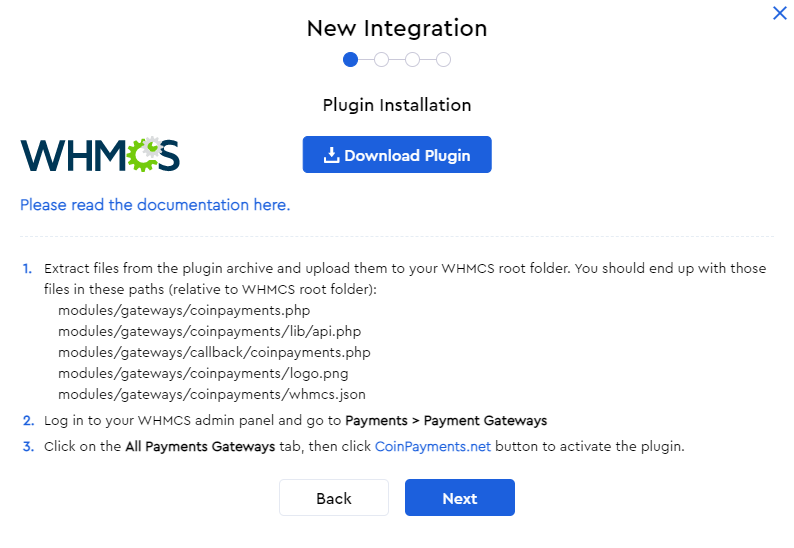
8 stepsA → a-api.coinpayments.netB → b-api.coinpayments.netC → c-api.coinpayments.netmodules/ and vendor/ folders to the root of your WHMCS installation. After uploading, confirm these files exist:modules/gateways/coinpayments.phpmodules/gateways/callback/coinpayments.phpmodules/gateways/coinpayments/lib/api.phpmodules/gateways/coinpayments/test_connection.phpvendor/coinpayments- Open Apps & Integrations (Marketplace).
- Search for CoinPayments.
- Click Activate on the CoinPayments integration.
- After activation, click Manage from the same screen.
- Enter your Client ID.
- Enter your Client Secret.
- Choose your CoinPayments Instance:
A,B, orC. - Click Save Changes.
- Click Test Connection.
- Open Apps & Integrations (Marketplace).
- Search for CoinPayments.
- Click Activate on the CoinPayments integration.
- Go to System Settings → Payment Gateways.
- Under active gateways, open CoinPayments.
- Enter your Client ID.
- Enter your Client Secret.
- Choose your CoinPayments Instance:
A,B, orC. - Click Save Changes.
- Click Test Connection.
The Test Connection button calls getMerchantWalletsV2(0, 1) using the saved instance and credentials. A successful result confirms that API credentials and entity routing are valid.
https://your-whmcs-host/modules/gateways/callback/coinpayments.phpSee the webhook guide.- Create a small WHMCS test invoice and open it as a client.
- Click Pay with CoinPayments and complete the hosted checkout.
- Confirm WHMCS marks the invoice as paid and that the transaction ID matches the CoinPayments invoice / payment event.
- Review the WHMCS gateway logs for webhook delivery or signature errors.
- Confirm duplicate webhook deliveries do not create duplicate WHMCS payments.
Keep your Client Secret safe
Your Client Secret is displayed only once when you create the integration. Store it securely — if it is lost you can regenerate it from the dashboard.
How it works
7 points- Invoices are created with the SDK postMerchantInvoicesV2 route.
- Checkout uses the
checkoutLinkreturned by that route. - The checkout opens in a new tab with
target="_blank"andrel="noopener noreferrer". - Webhooks are verified with the SDK
WebhookVerifier— see authenticating requests. - Paid / completed webhook events call WHMCS
addInvoicePayment. - Duplicate transaction IDs are rejected through WHMCS
checkCbTransID. - A created invoice is cached in the customer session to avoid duplicate invoices during invoice-page refreshes.
Troubleshooting
3 scenariosIf Test Connection fails
- Confirm the gateway settings were saved before testing.
- Confirm the selected instance matches your account.
- Confirm the Client ID and Client Secret belong to the same instance.
- Confirm the API integration credentials were copied correctly.
- Check whether IP restrictions were added to the CoinPayments integration.
If invoice creation fails
- Check the WHMCS gateway logs for the CoinPayments API response payload.
- Confirm the WHMCS invoice currency is supported by CoinPayments.
- Confirm the API integration has invoice permissions.
If payment reconciliation fails
- Confirm webhooks are enabled in WHMCS.
- Confirm the callback URL is publicly reachable over HTTPS.
- Confirm Auto-register Webhook completed without errors.
- Confirm the WHMCS server time is accurate; webhook signatures use timestamp freshness checks.
Tested environment
CoinPayments tested this gateway module in the environment above. Validate the module in your own WHMCS environment before accepting live payments.
Disclaimer
This module has been tested by CoinPayments for standard installation, configuration, invoice creation, checkout, webhook handling, and payment reconciliation. It is provided on an as-is and as-available basis, with no guarantee that it is error-free, uninterrupted, or compatible with every WHMCS environment.
Merchants are responsible for validating the module in their own environment before accepting live payments — create and reconcile several low-value test invoices, confirm webhook delivery, and review the gateway logs. Use of this module is subject to CoinPayments’ User Agreement and Privacy Policy.
Report any unexpected behaviour, payment mismatch, duplicate credit, webhook failure, or reconciliation issue to CoinPayments Integrations support.
Where to next?
Pick the most useful next step.